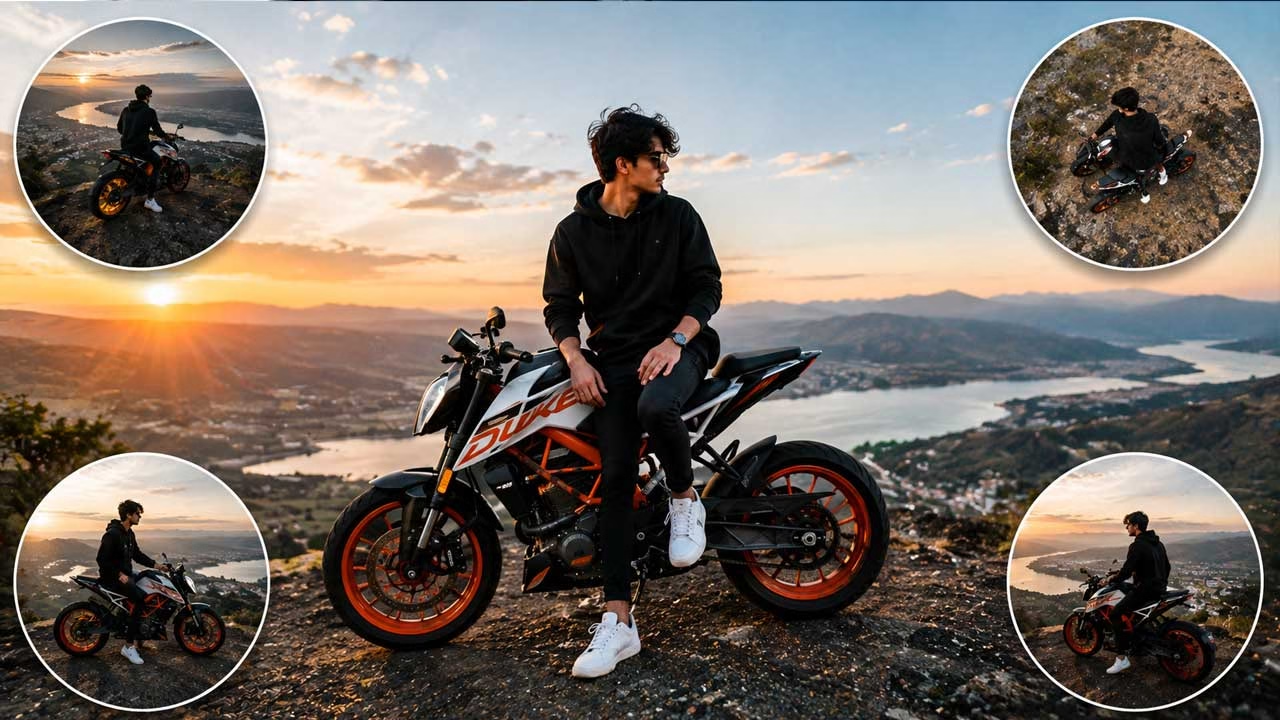
A single photograph does not have to remain a static image. With the right AI video prompt, it can become the starting point for a dramatic 360° aerial sequence where the camera appears to rise, move around the subject and reveal the surrounding environment. The key is to make the AI understand that the uploaded photograph is the visual reference and that the camera, rather than the subject, should create most of the movement.
Use the Uploaded Image as the Visual Anchor
The first step is to upload the image into an AI video generator that supports image-to-video creation. The uploaded picture should determine the subject’s appearance, colors, proportions and important visual details. Instead of asking the AI to redesign the scene, the instruction should tell it to preserve the original subject while generating additional camera perspective around it.
Define What the 360° Movement Means
A 360° drone shot can be interpreted in several ways, so the camera movement needs to be described precisely. For this type of video, the camera can begin close to the uploaded subject, slowly move upward and then orbit around it in a wide circular path. The subject should remain visually consistent while the background changes naturally as the virtual camera travels around the scene.
Create the Feeling of Real Drone Footage
Real drone footage rarely moves like a perfectly mechanical camera. There is usually a subtle sense of acceleration, deceleration and floating motion. The prompt can therefore request smooth cinematic drone movement with a gentle rise and controlled orbit. Avoid asking for extremely fast rotation because it can cause the AI to distort objects, duplicate details or produce unnatural transitions between frames.
Preserve the Main Subject Throughout the Shot
The uploaded image should remain the primary reference throughout the entire generation. If the photograph contains a vehicle, building, person or another prominent object, its fundamental appearance should not change as the camera moves. Instructions such as maintaining the same structure, shape, colors, surface details and proportions can help prevent the AI from treating every new camera angle as an opportunity to redesign the subject.
Expand the Environment Naturally
One of the interesting aspects of image-to-video generation is that the original photograph may not contain enough information for a complete 360° view. The AI has to infer what could exist beyond the visible edges. A useful prompt should therefore request realistic environmental extension based on the existing scene. Buildings, roads, trees, mountains, walls or other surroundings should continue logically instead of appearing as unrelated objects.
Control the Height of the Virtual Drone
The height of the camera can completely change the character of the video. Starting at approximately the original image’s viewing height can make the transition feel natural. The drone can then gradually climb while continuing its orbit, giving the viewer a broader understanding of the location. A slow elevation is generally more convincing than an immediate jump to a very high aerial perspective.
Keep Lighting and Shadows Consistent
Lighting becomes particularly important when the camera appears to move around an object. The sunlight, reflections and shadows should remain physically consistent with the original photograph. The AI should not introduce a new sun position halfway through the shot. Asking for natural lighting continuity, realistic reflections and consistent shadows can help the generated footage maintain the appearance of a single real-world recording.
Use This Prompt for the 360° AI Video
AI Video Prompt: Use the uploaded image as the exact visual reference for the main subject and preserve its original appearance, colors, proportions, textures and important details. Create a highly realistic cinematic 360-degree drone video starting from the viewpoint shown in the image. Slowly move the camera backward and upward, then perform a smooth wide circular orbit around the subject while maintaining the subject as the visual focus. Gradually increase the drone height to reveal more of the surrounding environment. Extend areas outside the original image naturally and realistically based on the existing location. Maintain consistent daylight, shadows, reflections and atmospheric conditions throughout the entire shot. Use authentic drone-style motion with smooth acceleration, gentle stabilization and realistic depth. Do not redesign, duplicate, morph or distort the main subject. No sudden camera cuts, no artificial zooming, no changing colors, no warped structures and no unrealistic movement. The final video should look like genuine professional 360-degree aerial footage captured by a real drone.
Choose a Camera Path Before Generating
The camera path should have a clear beginning, middle and end even though the final result may look spontaneous. A useful sequence is to begin near the original viewpoint, rise gradually, move sideways into the orbit and finish at a wider elevated angle. This gives the AI a logical progression instead of demanding several unrelated movements at once. It also makes the resulting clip easier to edit into a longer video.
Prompt:
create a realistic 360-degree drone shot video, panning far away from the gril/boy.
Check the Video for Perspective Errors
After generation, inspect the sections where the camera moves behind or beside the subject. These areas can reveal whether the AI has successfully reconstructed hidden portions of the environment. Pay particular attention to straight lines, vehicle wheels, building edges, windows, trees and repeated objects. If something changes shape during the orbit, reducing the camera speed and asking for stronger image preservation can produce a more stable result.
The most convincing 360° AI video is not necessarily the one with the fastest or most dramatic camera movement. A controlled orbit, gradual elevation and consistent environmental details can make a single uploaded photograph feel like part of a much larger real location. When the original image remains visually stable while the virtual drone explores around it, the final result can deliver the impression of an aerial camera having genuinely captured the scene from multiple angles.